Most tools give you one pipeline and force the sales team and the shop floor to share it. Layers3D keeps a Sell board for quotes and a Make board for printers. The job moves between them once, when the customer says yes, and never lives in two places at the same time.
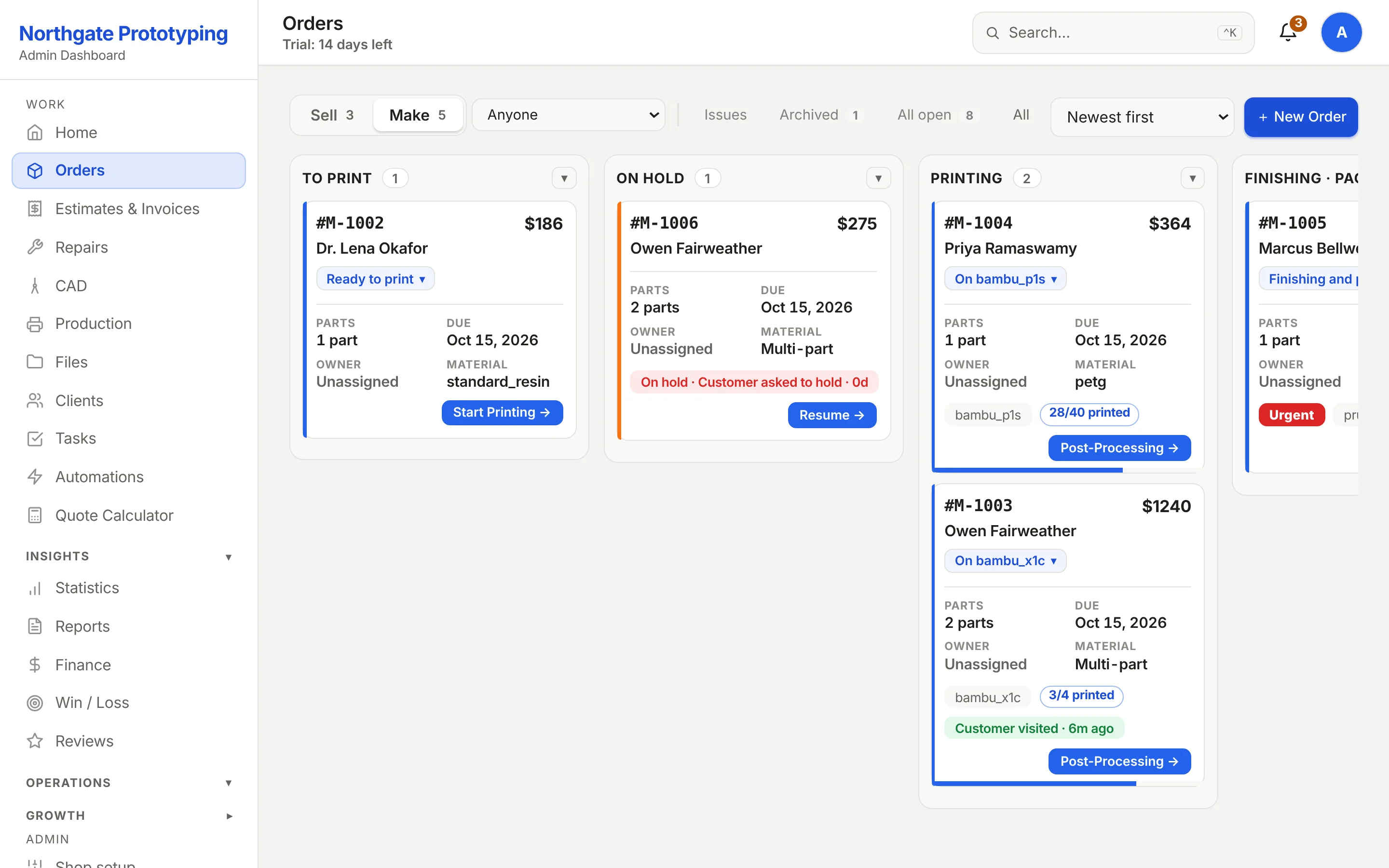
CloseThe Make board: To print holds a dental arch model for a dental lab; Printing holds a cable-chain link on a Bambu P1S at 28 of 40 pieces and an impeller housing job; Finishing holds an urgent duct adapter on a Prusa MK4 with a Mark Fulfilled button; On hold holds an L-bracket job with the reason 'customer asked to hold' and a Resume button.
The Make board. Every card carries a picture of the part, the printer it is on, how many pieces are done, and the one button that moves it forward.
The Sell board
Quoting, waiting, review, won.
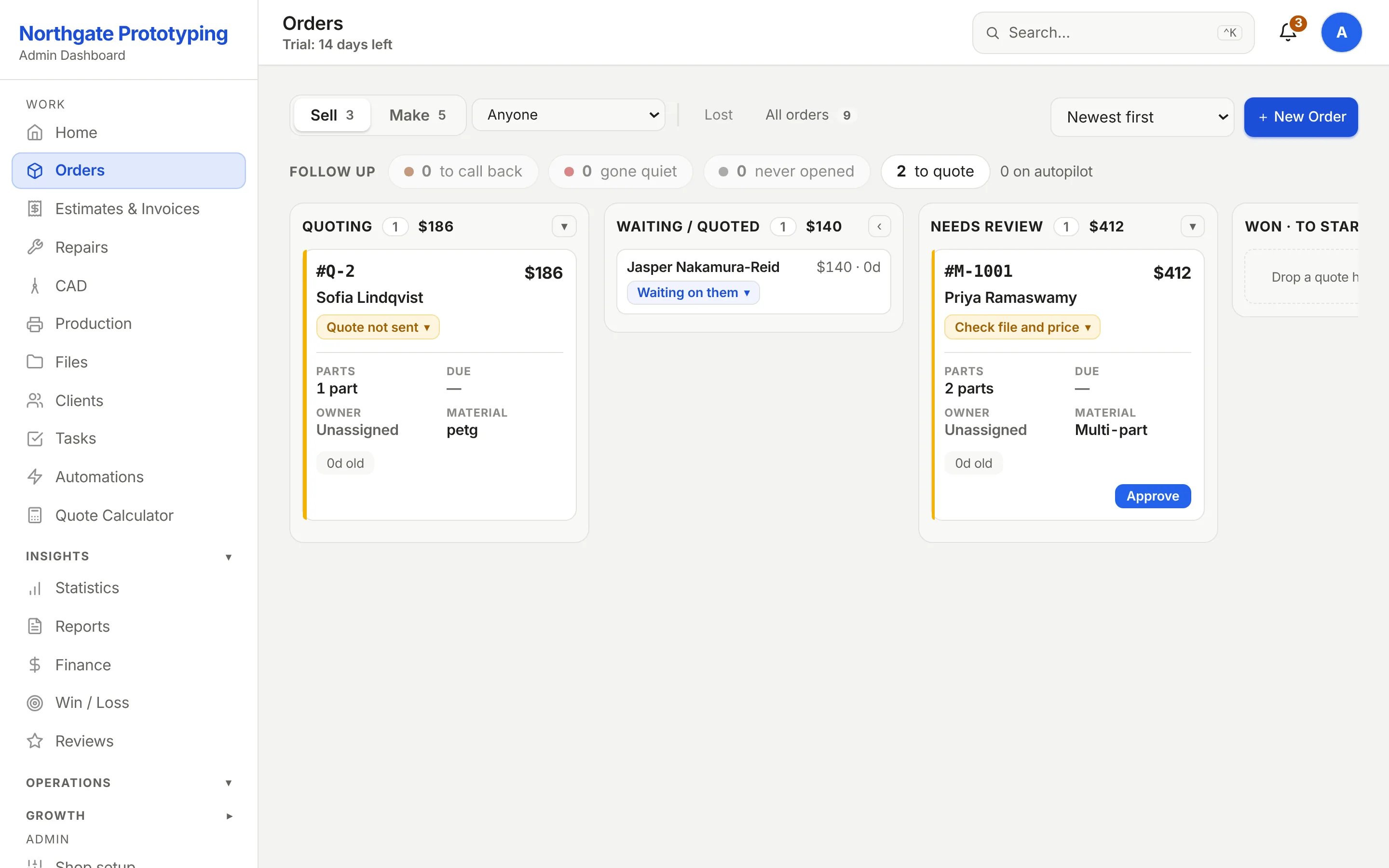
Every request lives here until the customer says yes: the ones you are pricing, the ones waiting on the customer, the ones that need a decision. Column totals show the money in each stage. A request with no file wears a badge until the file arrives, and the chase email is one approval away.
Column headers with counts and the dollar value in each stage
Waiting for a file, snoozed until a date, or declined with a reason the customer receives
Won quotes move once to the Make board, with the estimate and the files attached
Lost and Declined are different things and are kept apart
CloseThe Sell board: Quoting, Waiting/Quoted, Needs review and Won columns with counts and dollar totals, a card waiting for the customer to send a file, and Approve buttons on quotes ready to go out.
The Make board
Drag it, and it asks the right question.
To print → Printing → Finishing → On hold. Dropping a card into Printing asks which machine. Leaving Printing asks how many pieces came off and whether any were scrapped. Holding a job asks why, tells the customer, and stops the clock; resuming gives the held days back on both the deadline and the follow-up schedule.
Per-part counts: made, accepted, scrapped, with reprint allowance in the lead time
Printer chips on every printing card; live status for Bambu farms through BambuBuddy
Urgent flag separate from the priced turnaround, so a rush is never a silent reprice
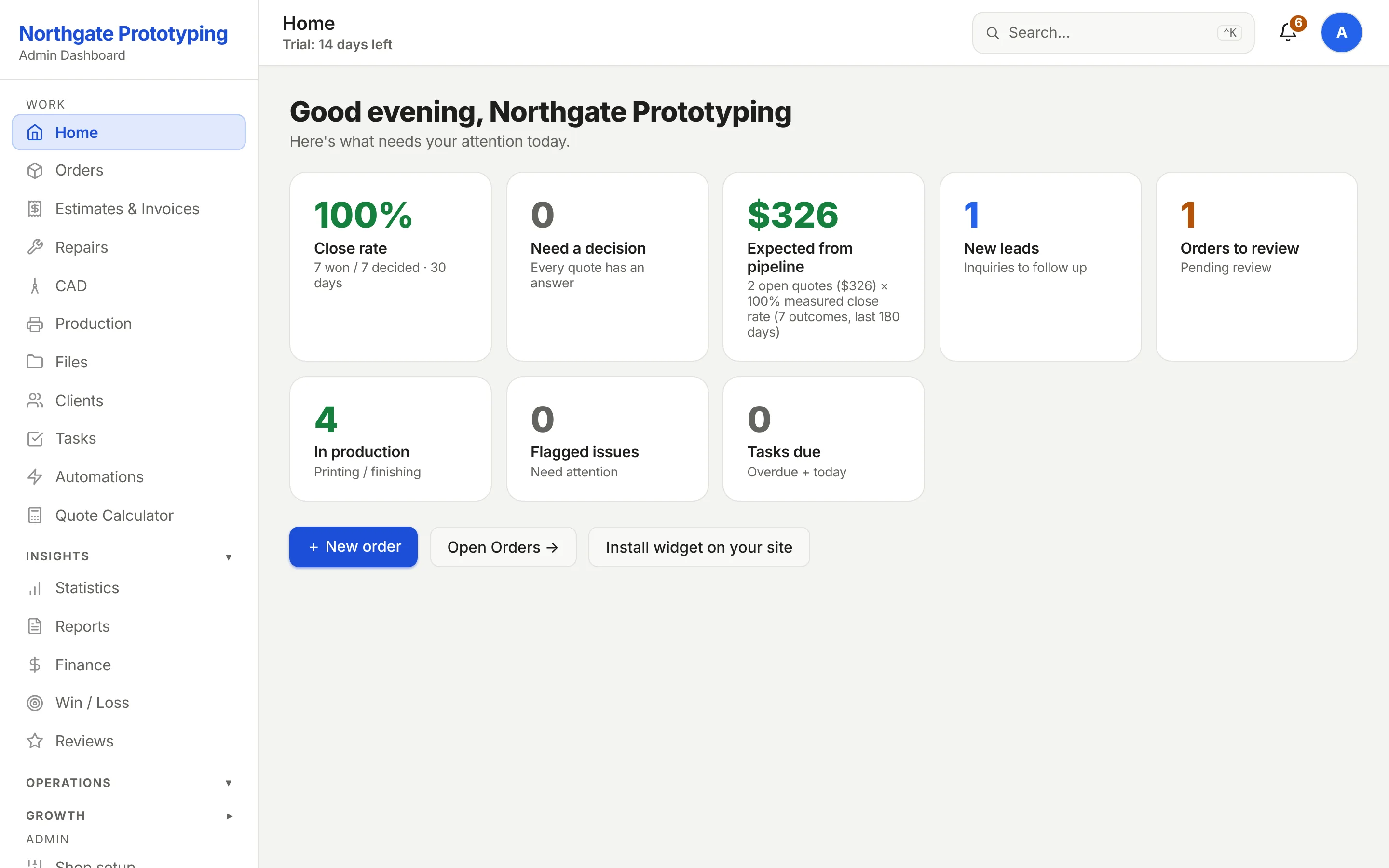
CloseThe shop's home screen: close rate, quotes needing a decision, expected revenue, new leads, orders to review and jobs in production, with a list of what needs attention today.
Capacity
Lead times from your fleet, not from a guess.
Each part's print time comes from its geometry and the printer's calibrated flow rate; the scheduler stacks jobs across your machines with a reprint allowance and a critical path, and the promised date comes from that. When a job is late, you knew on Tuesday, not Friday.
Per part
Print time → lead time
Geometry, material and layer height give hours per part; a calibration card fits the flow rate from jobs you have already run.
Per fleet
Capable is not schedulable
A printer that can take the part is not the same as one that is free. The scheduler knows the difference and says which machines are booked.
Per box
Packing that fits
One packer plan drives the box labels, the bag labels and the shipping rate, so the carton on the bench is the one the customer was quoted.
Scheduler
The queue as the floor sees it.
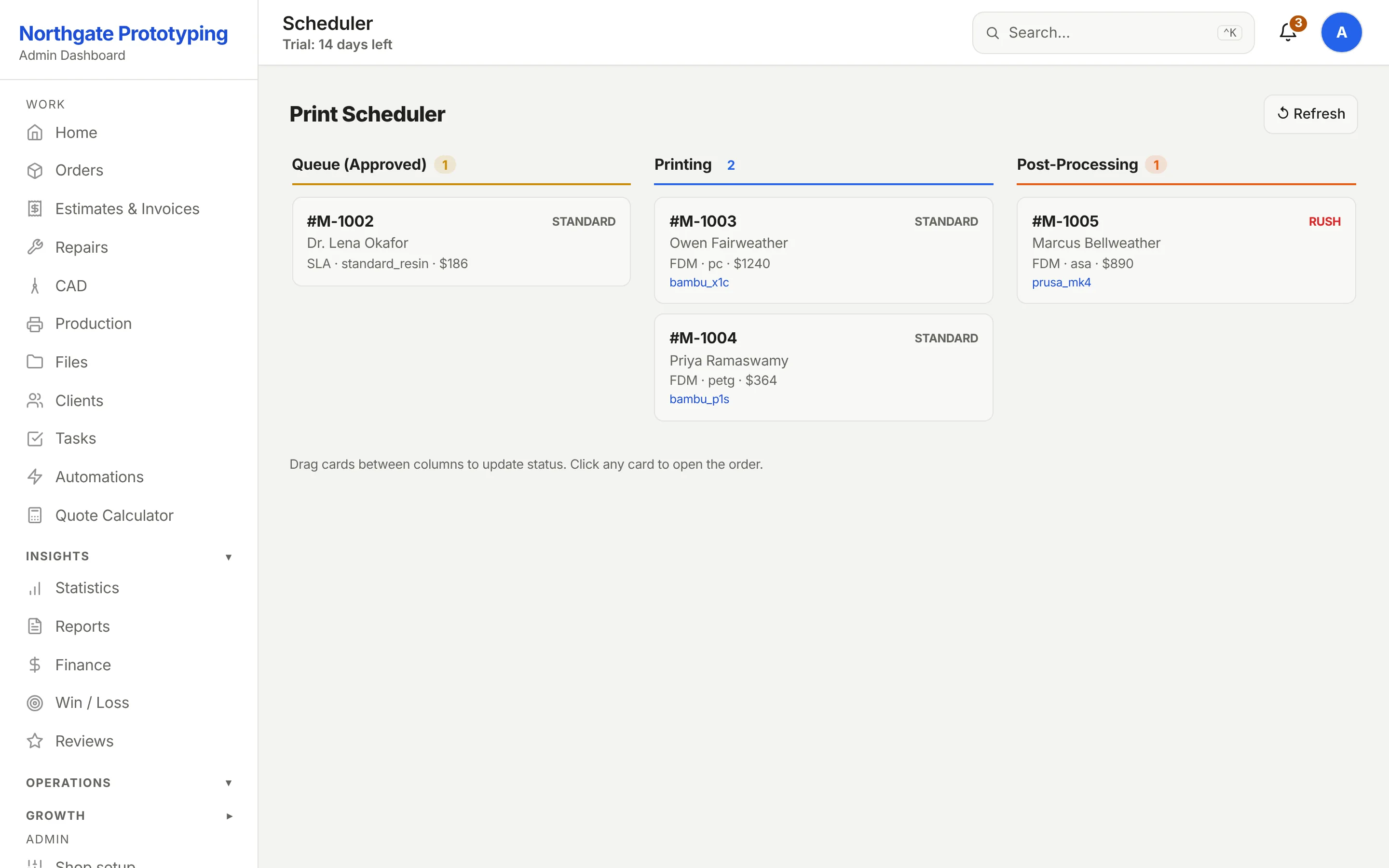
Approved, printing, post-processing: three columns, one card per job with its technology, material, value, priority and the machine it is on. Drag a card to move the job; click it to open the order. Rush jobs are marked so the person loading plates does not have to ask.
Queue by approval date, with rush jobs flagged
Machine assignment shown on every printing card
Drag between columns to update status, the same status the customer sees
CloseThe Print Scheduler with Queue (Approved), Printing and Post-Processing columns; cards show the order number, customer, technology, material, value, a STANDARD or RUSH tag and the printer key such as bambu_x1c or prusa_mk4.
Fleet and BambuBuddy
Your machines, their capacity, and live status where it exists.
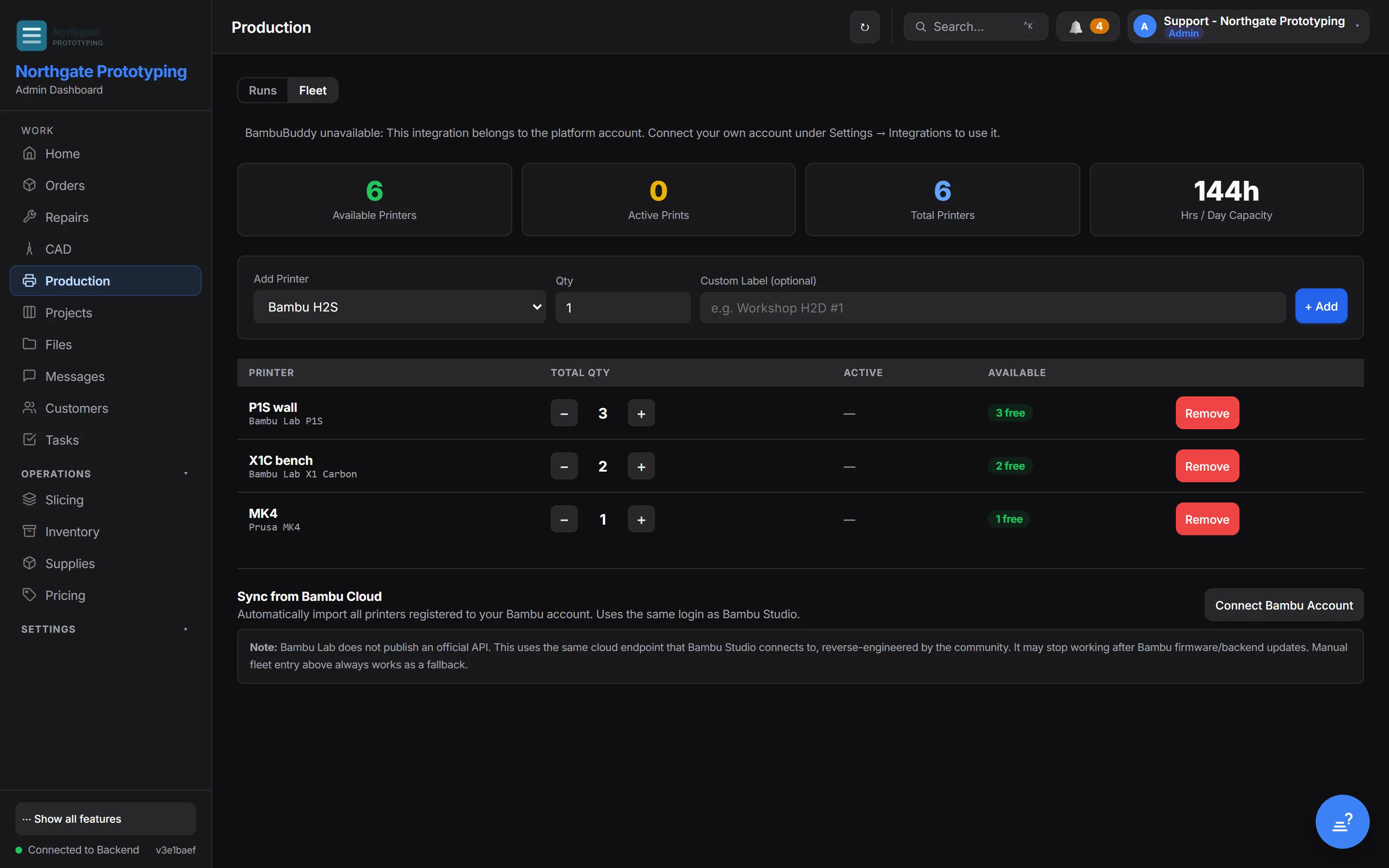
Register your printers by model and quantity, with your own labels, and the scheduler knows how many hours a day the shop can print. Bambu owners can import the fleet from their Bambu account and, with their own BambuBuddy connection under Integrations, see what each machine is printing right now; the Make board shows the live plate and every printer gets a station QR. For everything else, the people running the machines update the count from the phone at the bed, which is how most shops work anyway.
Twenty-four printer profiles: Bambu, Prusa, Voron, Creality, Elegoo, Formlabs, EOS and generic FDM, SLA and SLS
Quantity and custom label per model; hours-per-day capacity for the scheduler
BambuBuddy live status with your own account, and manual entry always works
Production runs: build plates from a sliced 3MF and dispatch them to machines
CloseThe Production page's Fleet tab: tiles for available printers, active prints, total printers and hours per day of capacity, a form to add a printer by model, quantity and label, the registered fleet, and a Sync from Bambu Cloud option.
Put your queue on a board that asks the shop-floor question.
Founding Shops get Professional at CA$119.20 a month for their first year.