Features / Print queue
Print queue Beta
When a customer says yes, Layers3D slices the parts on your own computer, puts the plates in line and starts each one on the next free printer that has the right colour loaded. You clear plates and load spools. The queue does the rest.
The print queue sends real jobs to real printers, so we open it one shop at a time after a quick look at your printers and agent.
How a job moves
Slices on its own
Turn on Print automatically and every accepted quote, linked store order and order you move to To print is sliced and queued without you. Pick when it starts: as soon as the quote is accepted, or once it is paid. Pick how much you trust it: check each slice before it goes in line, or let it go straight to the queue.
Colour matching
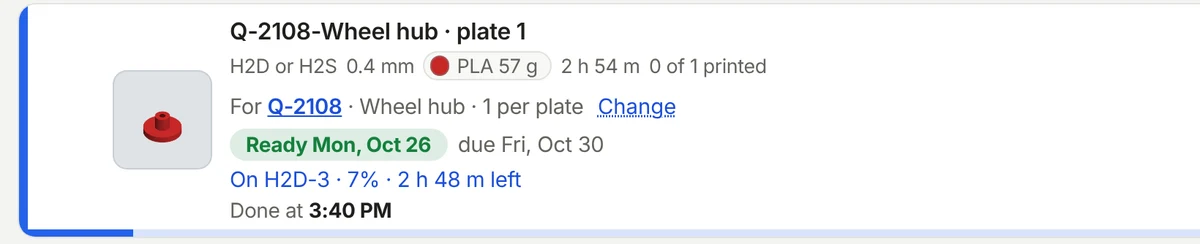
The queue reads what is loaded in every printer and only starts a plate on one that has the exact colour the order asked for. A red wheel hub waits for the printer with red in it, even when a printer loaded with black is free. Close is not good enough, so it never prints a customer's part in the wrong colour on its own.
If you keep swapping the same colour by hand, say Silver for White, it asks once whether to always do that. Swaps you approve are treated as exact from then on, and only ever within the same material.
The red wheel hub went to H2D-3, the one printer with red loaded.
Shared plates
Turn on Share plates between orders and the queue nests small parts from different orders on one plate and slices it once. Plates only share when they need the same filament, layer height, printer model and nozzle. Rush jobs, jobs due within four hours and anything already sent never share. When it comes off, every order gets its own pieces counted, as if it printed alone.
Plate check
A new print only starts on a plate a person said is clear. Before every automatic start, the printer's camera takes a look as well. If it sees something on the plate twice, it holds that printer and tells you. The next plate waits for that printer, and the rest of the floor keeps going.
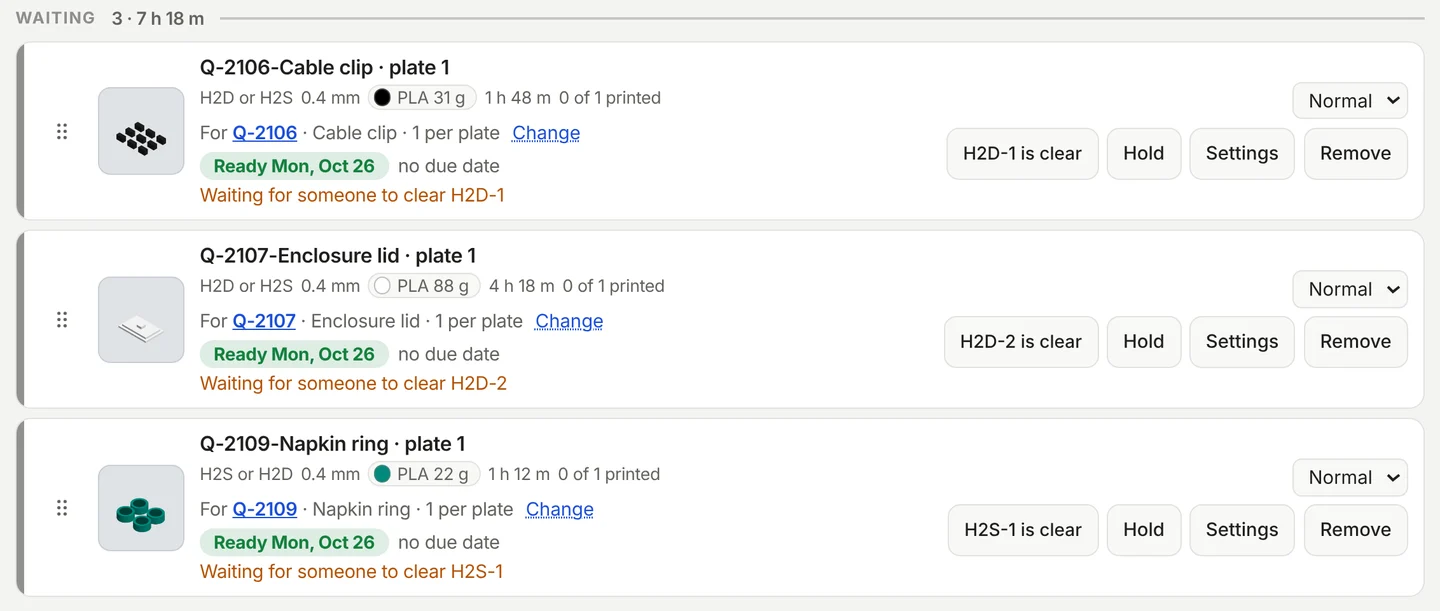
Plates line up behind the printer that will take them, each with its own Plate is clear button.
Phone alerts
When a print finishes or fails, the alert goes to your phone through ntfy, Pushover or the Layers3D app. Tapping it opens one screen with the camera picture and the next job. Say how it came off, press Plate is clear, and the next plate starts. A failed print never gets a start button: it asks you to check the printer first.
One list for the floor
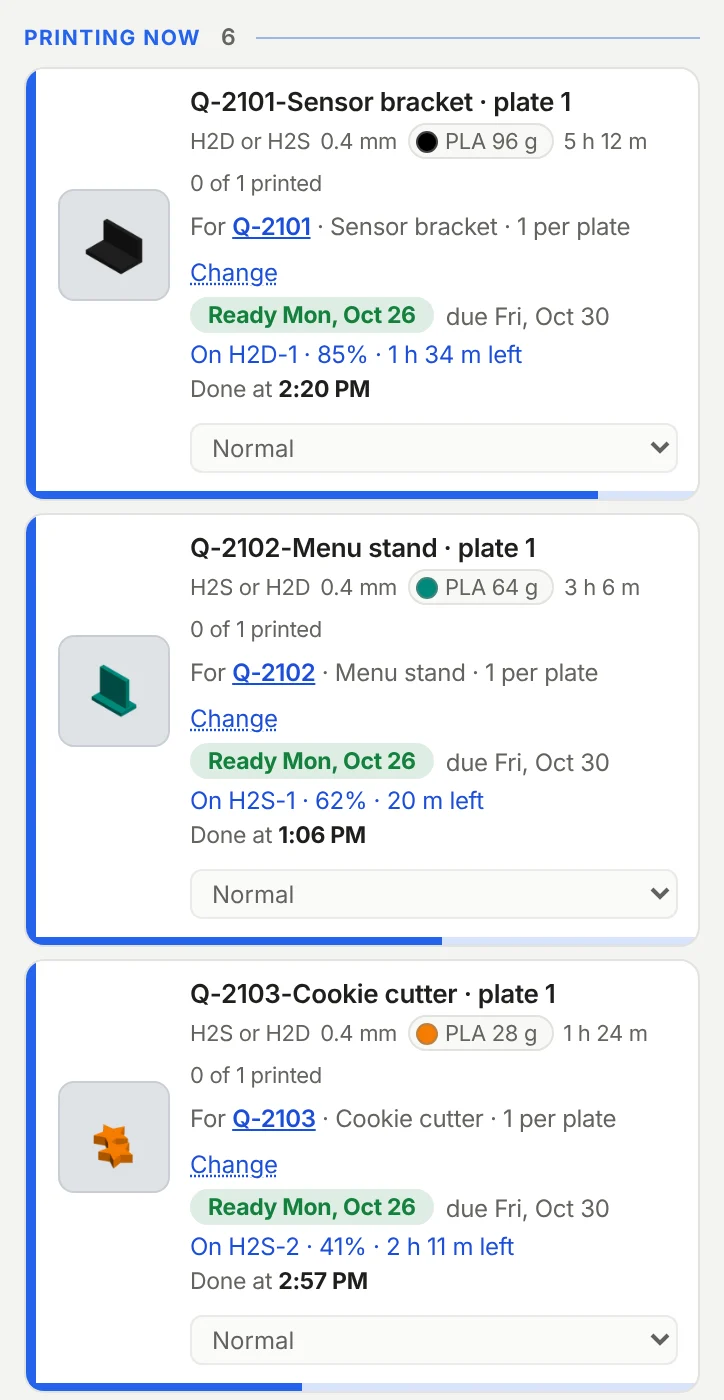
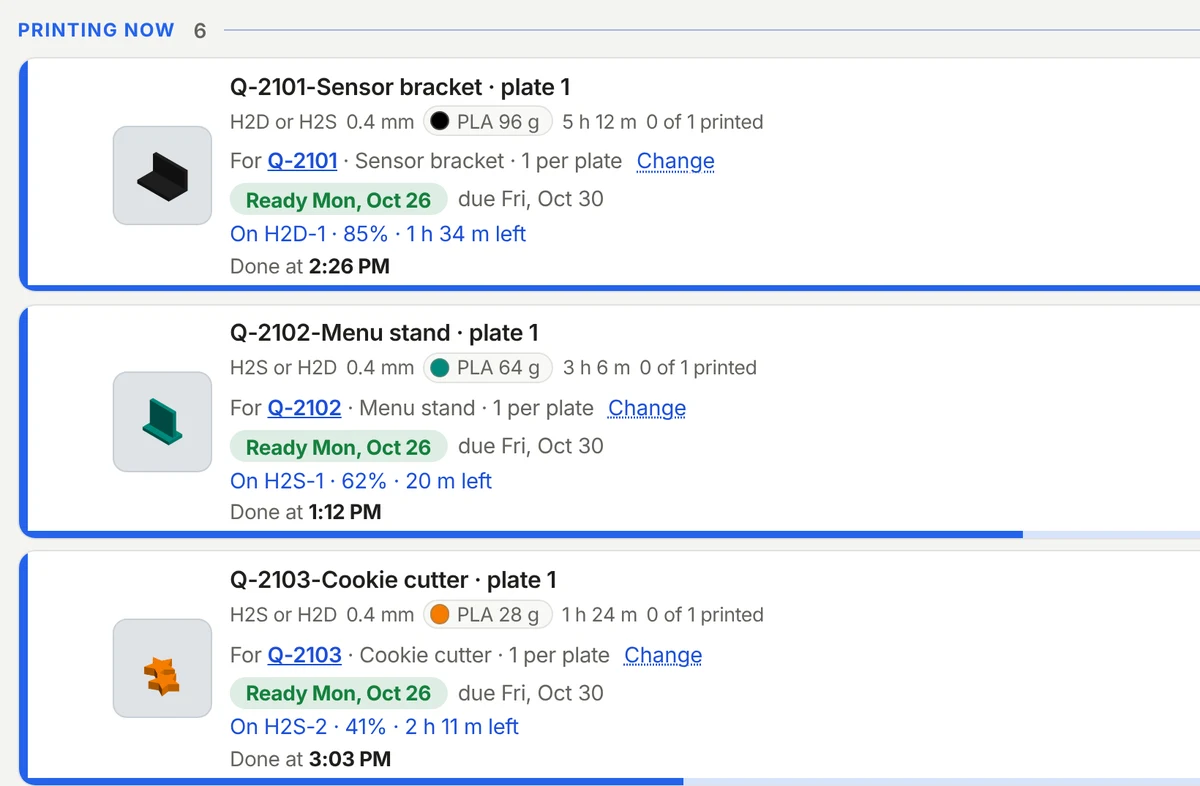
The Queue keeps four groups in the order you act on them: Printing now, Need you, Up next and Waiting. Every plate shows its picture, colour, grams, the order it belongs to and when the order is promised. Afterwards, Prints to check asks how each one came off, and the Printer report shows which machines fail more than the rest.
What it needs
The Layers3D agent slices and talks to your printers from a computer at your shop. A Raspberry Pi works too.
Bambu printers need both turned on so the agent can send jobs and read what is loaded.
It is in beta. Watch the first layer of every print and tell us what goes wrong with the Feedback button.
Apply as a Founding Shop and ask to try the print queue. We turn it on one shop at a time.
Ask to try it