Help › Orders
Assemblies and service lines
Fold pieces under the part you sold as one, add a design fee as its own line, and set up many new parts at once.
Pictures taken from Layers3D 2026.13.94 on Oct 7, 2026
Some files are the whole thing, built from pieces. Some charges are work, like a design fee. Lay both out on the order's Overview tab, under Parts.
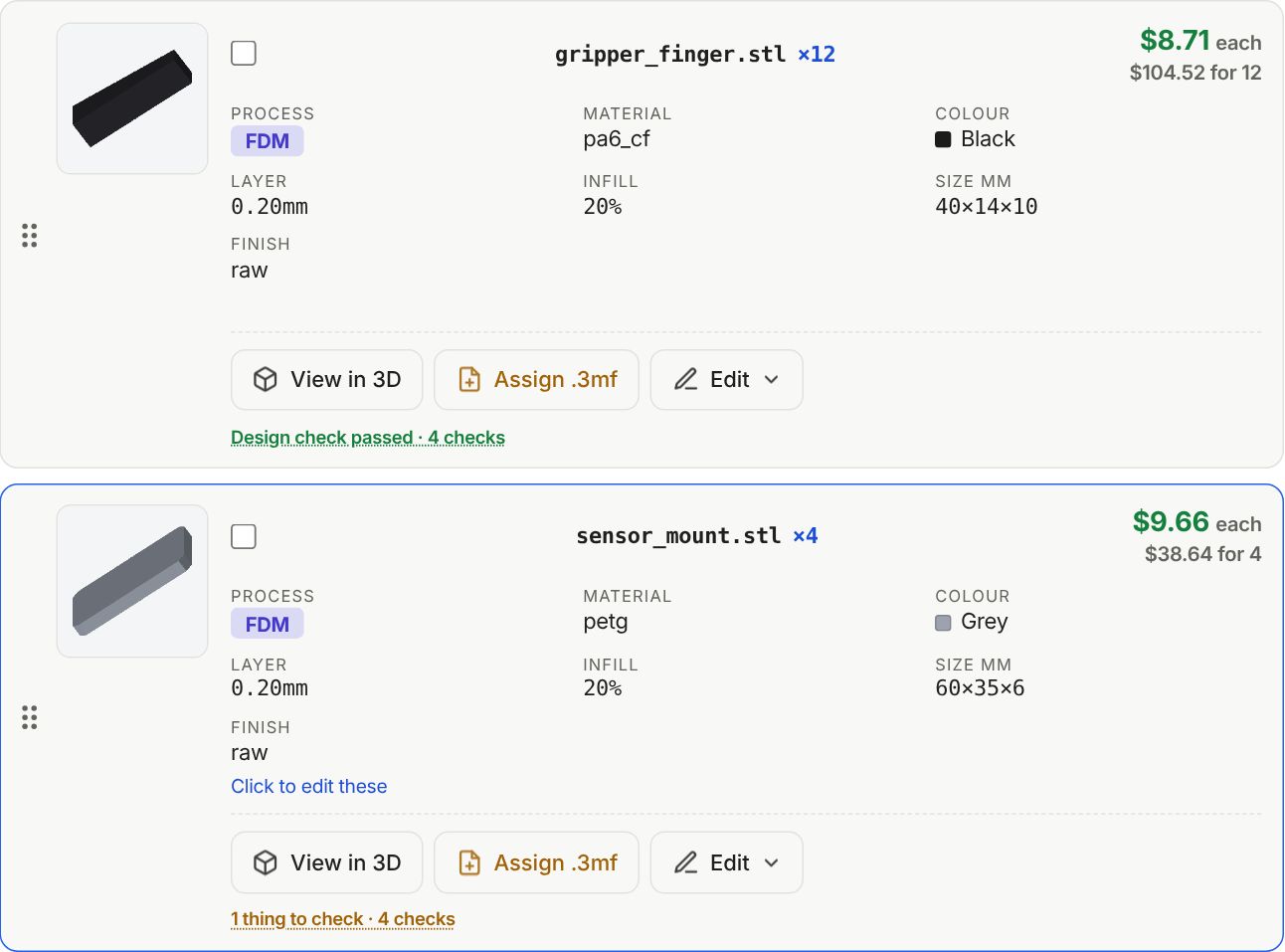
Make a part an assembly
- On the part card for the whole thing, open Edit and pick It's an assembly.
- Under Pieces inside it, tick the pieces it is built from.
- Press Make it an assembly. The price and the order total stay the same.
Only the pieces get printed. The estimate and invoice name them under the assembly. To undo, press Not an assembly…, then Make it a part again.
Add a service line
Design fees, engineering time, setup and rush go in Services, below the parts. Press + Add a service, fill in the name, Kind and Amount ($), then press Add service. The total goes up by that amount.
Typed a fee in as a part? Open Edit on that card and pick Make it a service line. The total stays the same, even on a paid order.
Pieces for an order that is already paid
Add the files with + Add part. The app asks if they are part of what the customer already paid for. Press Add as included. Each piece goes on at $0 and says Included.
Set all parts at once
Add several files and a Set all row sits on top. Tick some parts, or none for all of them, and pick the process, material and colour once. Press Save specs.
Still stuck? Inside Layers3D, open Help and choose Message us. A person answers.