Help › Start here
Put the quoter on your website
Copy one line of code onto your site and customers can upload a file and get a quote from you.
Pictures taken from Layers3D 2026.13.94 on Oct 7, 2026
Your quoter is one line of code. Paste it on any page of your site and quotes land in your Orders.
Install it
- Go to Settings › Pricing › Quote form and scroll to Install your widget. The Install widget on your site button on Home goes there too.
- Leave Widget on the instant 3D quoter, or pick a simpler request form.
- Click Copy code.
- In the install guide below the code, open your platform and follow its steps to paste it in.
- Reload your page and drag in any STL. The quote should show up in Orders within seconds.
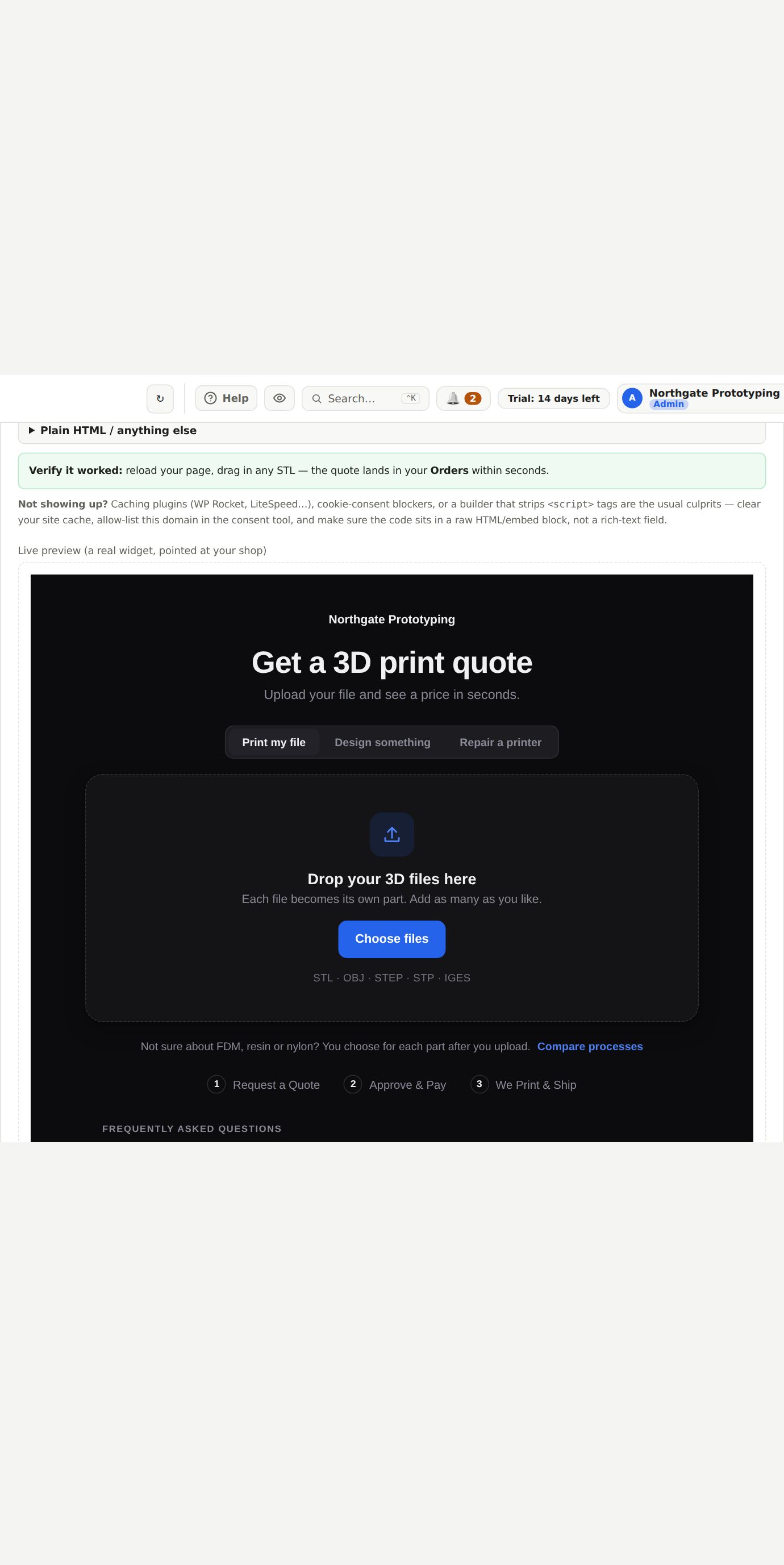
The Live preview at the bottom of the card is the real thing, pointed at your shop. The Going live list on Home ticks itself the first time the quoter loads on your site.
What your customer sees
Your name and logo, a "Get a 3D print quote" heading, and a choice of what they need. They only see the services you sell. They upload .STL, .OBJ, .STEP or .IGES files, tell you where to send the quote, then see their price and check out.
While instant prices are off, they send a Request for Quote instead and you price it by hand.
To match your site, pick a look under How the quoter looks. Add your web address under Your storefront domains and click Save domains.
Still stuck? Inside Layers3D, open Help and choose Message us. A person answers.