Help › Getting paid
Price by quantity
Show "how much for 1, 5, 10?" on your quote page and on estimates, priced by your own rates.
Pictures taken from Layers3D 2026.13.94 on Oct 7, 2026
Customers always ask how much it costs for 5, or 50. Price by quantity answers that before they ask. The prices come from your own rates, so they match the quote.
Turn it on
- Go to Settings › Pricing › Quote form.
- Find the Price by quantity card.
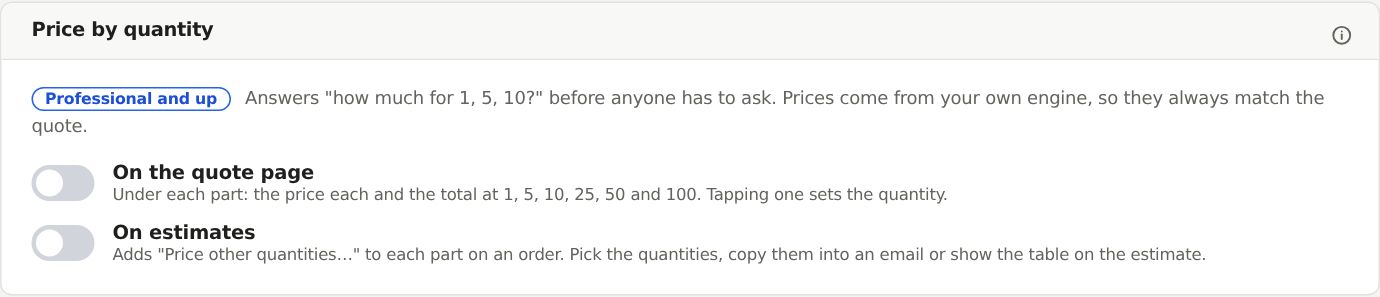
- Switch on On the quote page, On estimates, or both. Each one saves right away.
On the quote page
Under each part, the customer sees the price each and the total at 1, 5, 10, 25, 50 and 100 pieces, with how much less each one costs. Tapping one sets their quantity. It only shows when your quote page shows prices.
On estimates
Each part on an order has Price other quantities under its Edit menu. Pick the quantities, then click Price these. You can change any price. Then click Copy for an email to paste the list into a reply, or Show on estimate to add the table to the customer's estimate.
Once a table is on the estimate, the button on that part says Price by quantity · on estimate.
Still stuck? Inside Layers3D, open Help and choose Message us. A person answers.