Help › Your customers
Emails your customer gets
Which emails go out at each step, how to put them in your own words, and how to see what a customer got.
Pictures taken from Layers3D 2026.13.94 on Oct 7, 2026
Your customer hears from you at each big step. Most emails send themselves when the order moves.
What goes out, and when
- A request comes in from your quote form: "Quote request received".
- You press Send quote: "Your quote is ready", with a button to see the price and approve.
- They approve: "Your quote is approved".
- The order moves to To print: "Your file has been approved".
- It moves to Printing: "Your order is now printing!". The app shows you the email and asks first. Press Start, don’t email to skip it.
- It is finished: "Your order is ready for pickup!" or "Print complete".
- You mark a parcel shipped: "Your order has shipped", with the tracking number.
Status emails carry a Track Your Order button that opens their track page.
Put them in your own words
Go to Settings › Communication › Customer emails, to Your wording on customer emails. Pick an email, change the Subject line, and add your own words at the top and bottom. The order details, prices and buttons stay as they are. Press Save wording, or Send me a preview to see it first.
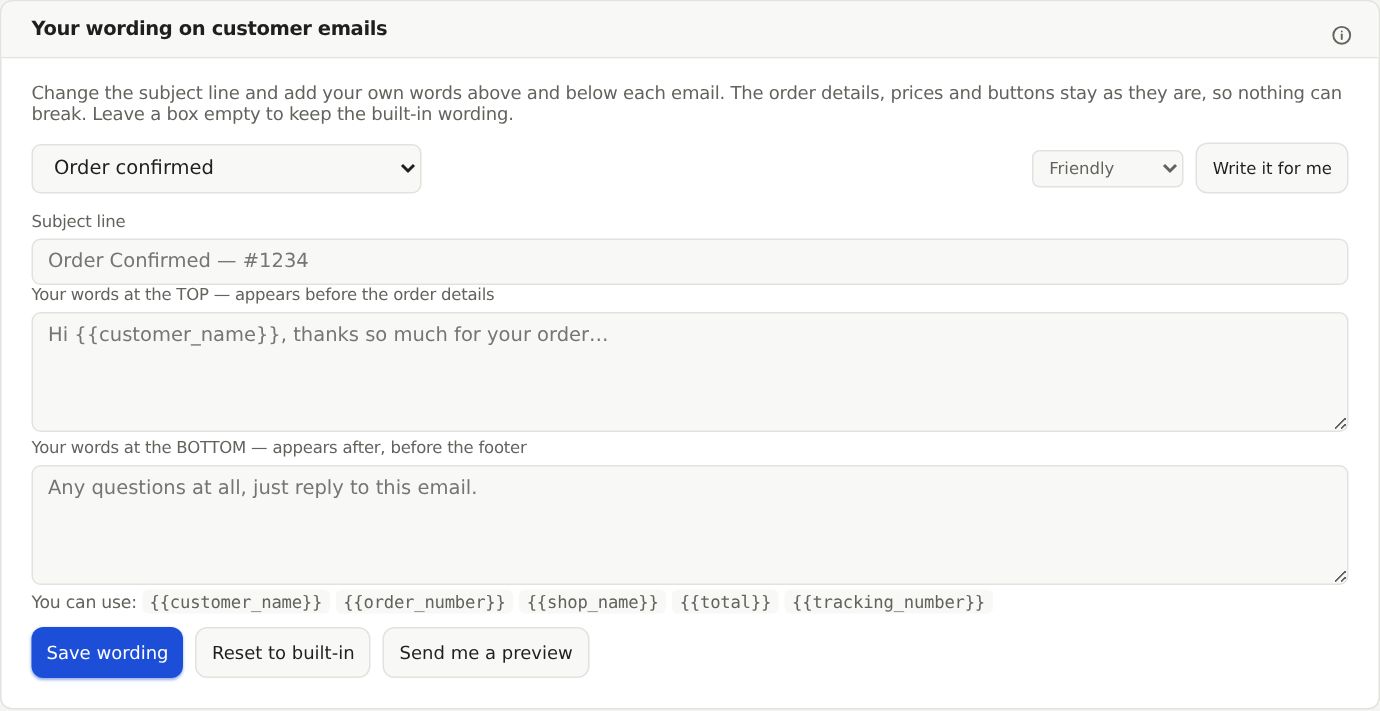
Turn the delivered and delay emails on or off under Shipment emails on the same screen.
See what a customer got
Open the order and go to the Activity tab. Each email is a line. Rest your mouse on it for a small picture of the email and whether they opened it. Click it to see the whole email.
Still stuck? Inside Layers3D, open Help and choose Message us. A person answers.