Help › Start here
Set your prices
Pick how quotes are priced, fill in your rates per technology, and set the rules every price follows.
Pictures taken from Layers3D 2026.13.94 on Oct 7, 2026
Your pricing lives in Settings › Pricing. Everything saves as you type, and an example part re-prices beside your numbers.
Set it up
- Go to Settings › Pricing › Engine & rates.
- Under How you price, pick one of three ways and click Use this. Simple rates is an hourly rate plus a margin, and works from day one. True cost + margin costs each job from print time, material, power and labour. Learn from my history prices from your won quotes; it needs the Enterprise plan and 10 sold jobs.
- Under Rates, pick a technology at the top (FDM, SLA / Resin, SLS / Nylon) and fill in Machine time and Margin. True cost + margin also asks what a kilogram of material costs you.
- Below that, check your materials. Switch off what you do not sell. On quoter means customers can pick it on your website; Orders only means only you can.
- Open Price policy and set your Minimum order, your quantity discounts, and what each finish adds.
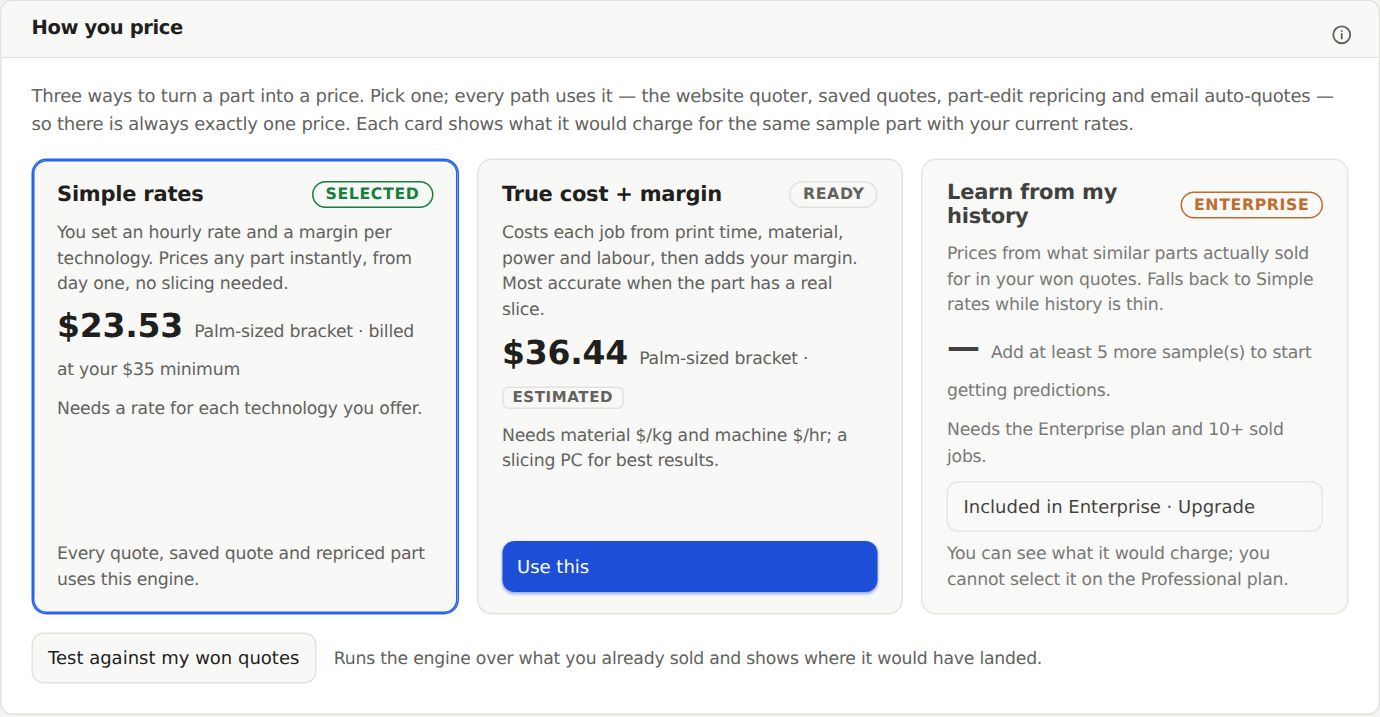
Not sure your numbers are right? Click Test against my won quotes. It runs the engine over jobs you already sold and shows where it would have landed.
What customers see
Customers only see prices when Show pricing to customers is on, under Settings › Pricing › Quote form. A new shop stays in request-for-quote mode for its first 10 verified quotes, so you can tune these rates on real jobs first. See Your first week.
Rush pricing lives in Lead time & delivery.
Still stuck? Inside Layers3D, open Help and choose Message us. A person answers.