Help › Shop floor
Box labels and QR scans
Print a QR label for the box, and anyone can scan it with a phone to see what is inside and where the job is.
Pictures taken from Layers3D 2026.13.94 on Oct 7, 2026
Every order can print a box label with a QR code on it. Stick it on the box. Anyone on the floor scans it with their phone camera. No app and no login.
Print a box label
- Open the order.
- Press the ⋯ menu at the top of the order.
- Under Documents, press Box label. The label opens in a new tab.
- Press Print label and stick it on the box.
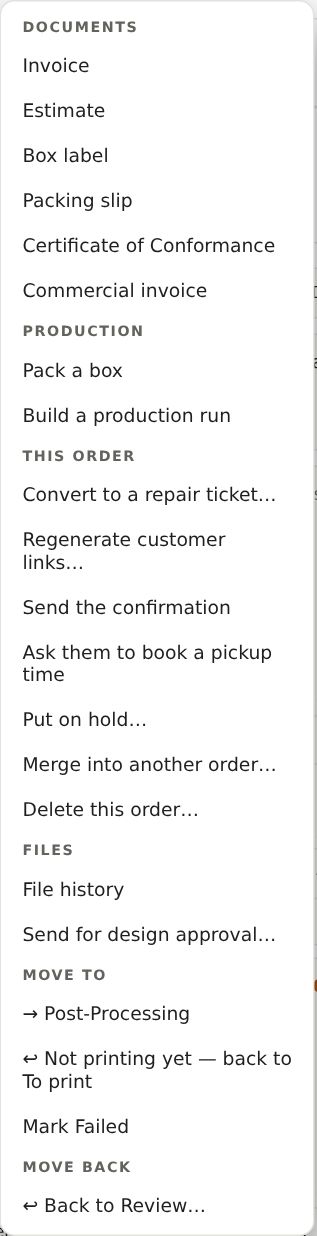
The app can also offer the label when an order moves to To print. Pick what happens in Settings › Production › After the print, under Box-label printing. Choose Ask me whether to print the box label, Print the box label without asking, or Don’t print it. You also pick the paper size there: a 4×6 thermal label, regular Letter paper, or a 40×30 mm mini label.
What a scan shows
The phone opens a page for that order. It shows the status and the steps, a picture of each part (tap it to turn it in 3D), how many pieces are done, the target date, and delivery or tracking.
It never shows money. A box passes through couriers and front desks, so prices stay off it. If the customer scans their own box, they can type their email or postal code under Is this your order? and press Open my order to see prices and the invoice.
Still stuck? Inside Layers3D, open Help and choose Message us. A person answers.