Help › Orders
Move an order back a step
Send an order back to Review, To print, Printing or Finishing without losing payments or files.
Pictures taken from Layers3D 2026.13.94 on Oct 7, 2026
Sometimes a job has to go back. A part needs reprinting, or the price needs another look. You can move a print order back to an earlier step.
Move it back
- Open the order.
- Click the stage bar at the top, the row of numbered steps.
- Under Move back, pick where it goes, like ↩ Printing or ↩ Review.
- Type why, if you like. It goes in the order history. Going back to Printing? Pick the printer too.
- Tick the email box only if you want the customer told.
- Click the Move back to button, like Move back to Printing.
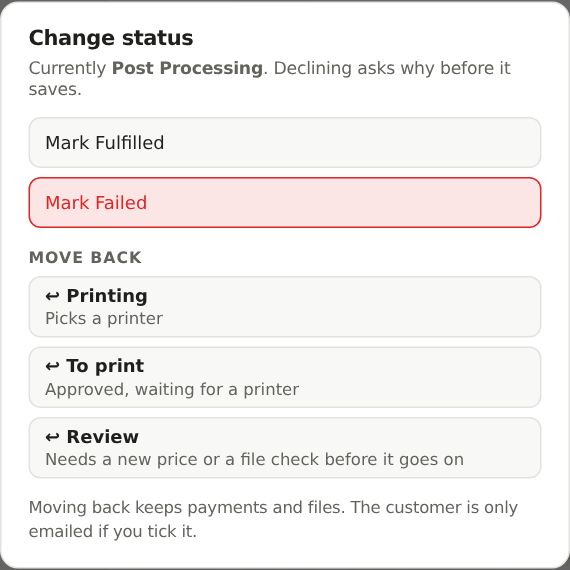
You can also get there from ⋯ at the top of the order. Look under Move back.
What stays and what changes
Payments, invoices, files and notes all stay. If it was ready for pickup or ready to ship, that date is undone, and no pickup or rating email goes out until it is ready again. Going back to Printing does not take filament off the shelf a second time.
Where it can go
Back to Review, To print, Printing or Finishing, from any later step up to Ready. It can never go back to Inquiry, and a shipped or completed order stays put. Repairs and design jobs do not have this.
Still stuck? Inside Layers3D, open Help and choose Message us. A person answers.