Help › Orders
The Make board
Work you have won, from the printer queue to the box going out the door.
Pictures taken from Layers3D 2026.13.94 on Oct 7, 2026
Open Orders and click Make. Jobs move left to right:
- To print: approved and waiting for a machine.
- On hold: paused. This column only shows when something is held.
- Printing: on a printer now.
- Finishing · Pack: off the printer, being cleaned up and packed.
- Ready to ship / pickup: packed and waiting to go out or be collected.
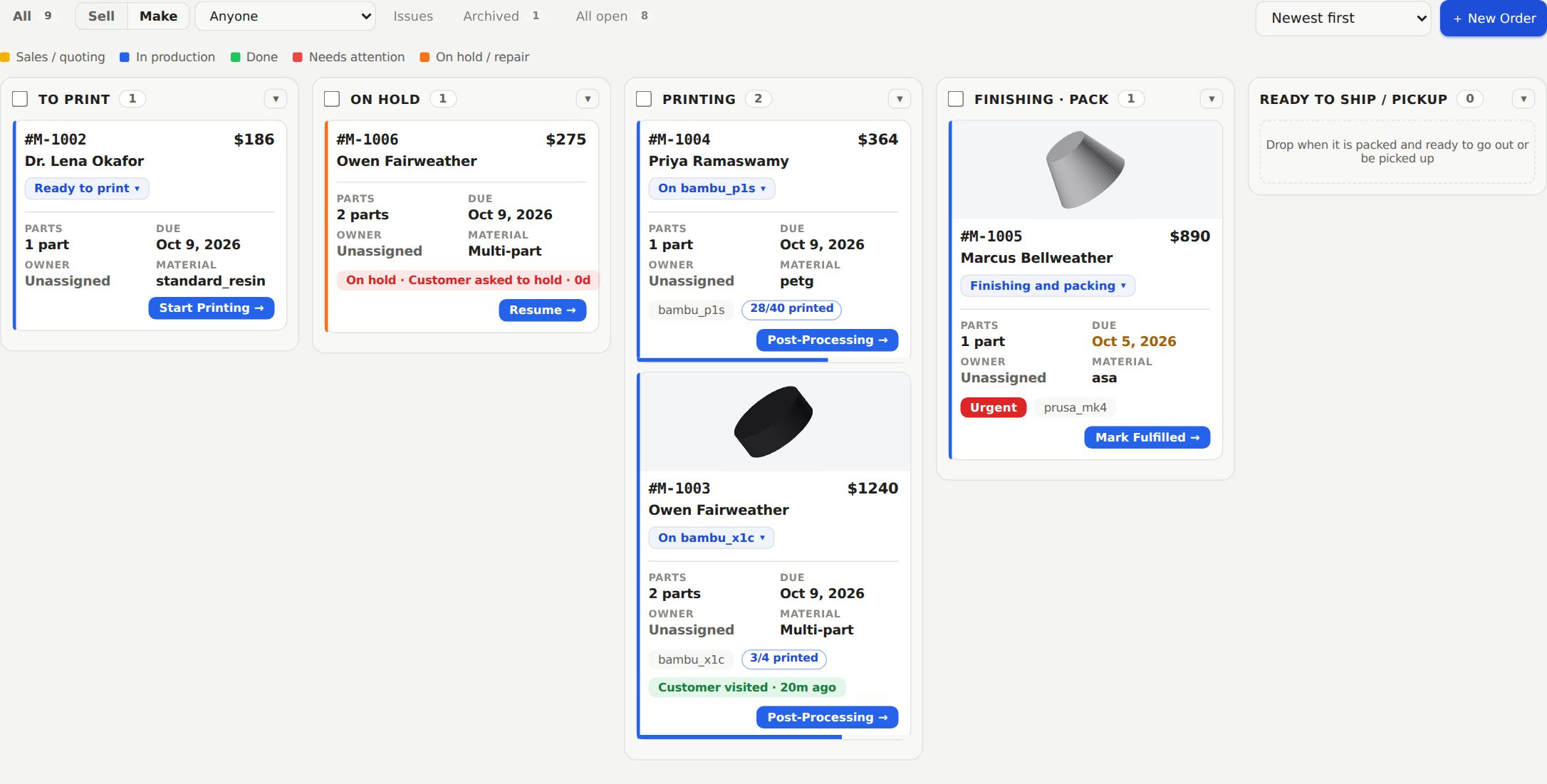
Each column header adds up the print time of the cards in it.
Moving a job along
Drag a card to the next column, or use the button at the bottom of the card. Moving to Printing asks which printer. From Printing, pick Done printing → Finishing. When it is boxed, pick Packed and ready. In the last column, click Shipped ✓, Delivered ✓ or Picked up ✓ and the card leaves the board.
Dragging a card backwards asks you first. Sending a job from Printing back to To print does not email the customer.
On hold and Resume
Drag a card onto On hold, or pick Put on hold… from its chip. Choose a reason, add a note for the customer if you like, and click Put on hold. Email the customer is ticked unless you untick it.
A held card shows the reason and how many days it has waited. When you are ready, click Resume →. The job goes back where it was, and the days it sat on hold are added back to its deadline and quote expiry.
Still stuck? Inside Layers3D, open Help and choose Message us. A person answers.