Help › Orders
Start an order by hand
Put in a job that came by phone, email or walk-in, with the customer, the parts and where it lands.
Pictures taken from Layers3D 2026.13.94 on Oct 7, 2026
Got a job by phone, by email or over the counter? Put it in by hand. The form has three steps: customer and shipping, parts, then details.
Make the order
- Go to Orders and click + New Order.
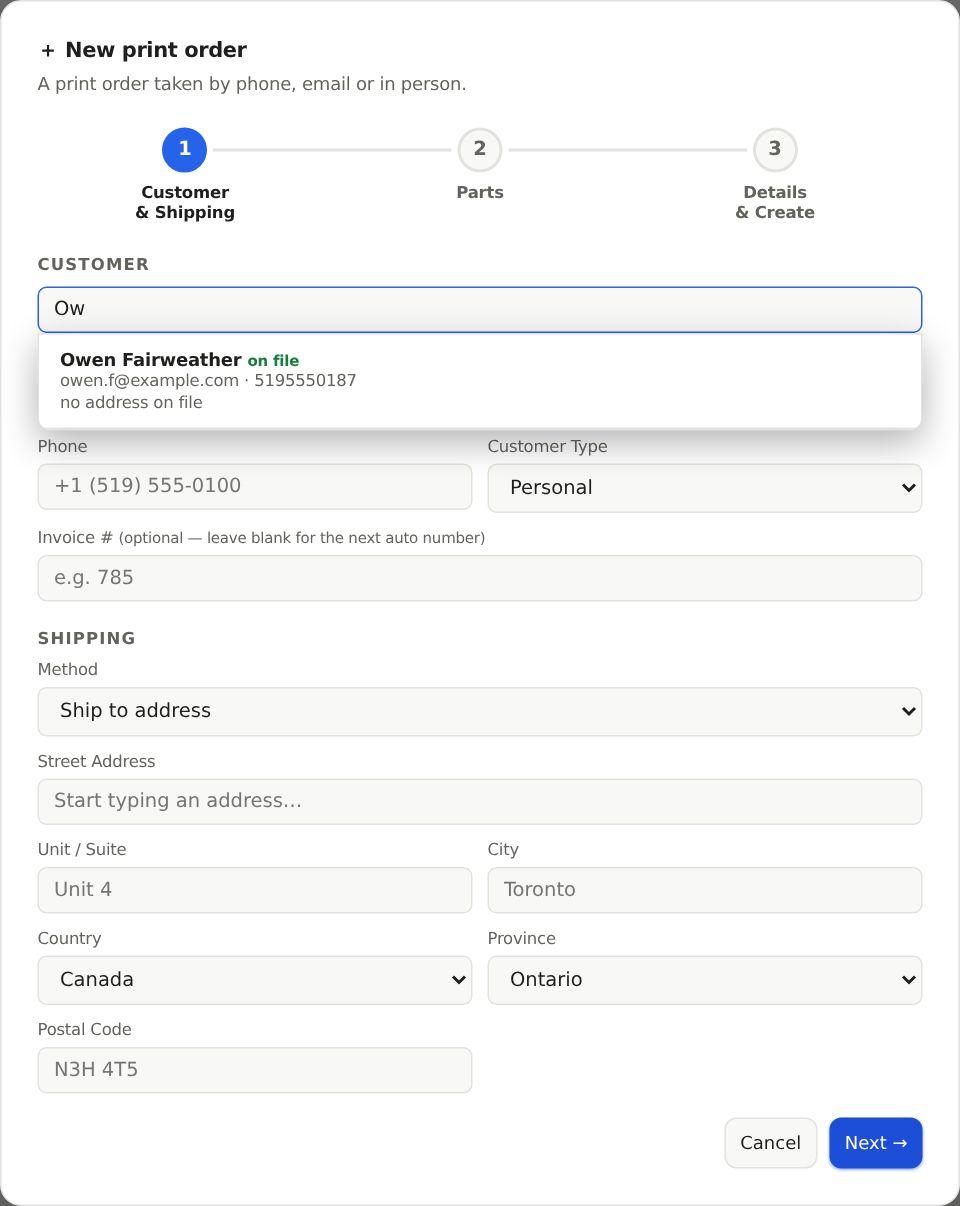
- In the Customer box, type a name, email or phone. Your past customers come up first. Pick one and their details fill in. No match? Type the Full Name, Email and Phone yourself.
- Pick the shipping Method and fill in the address, then click Next →.
- Add the parts with Attach files or + Add Part, then click Next →.
- Fill in the Order Details, like Quoted Total ($) and Deadline.
- Under Where does this order go? pick a stage. Each one lists what it still needs. Then click Create Order.
A business customer
Set Customer Type to Business and a Business / Company Name box shows up. Typing in it searches too. On the last step you may see a note about that company, like a PO number it needs on every invoice. It is a heads-up. It never stops you.
Starting an estimate instead
On Estimates & Invoices, the Estimates side has a + New estimate button. It opens the same form, set to land in Quoting. A job with no invoice yet gets an estimate number like Q-1, Q-2. To start from your old numbers, go to Settings › Pricing › Price policy › Estimate numbers.
Still stuck? Inside Layers3D, open Help and choose Message us. A person answers.