Help › Your customers
The track page your customer sees
What your customer sees on their order page, and what they can do there at each stage.
Pictures taken from Layers3D 2026.13.94 on Oct 7, 2026
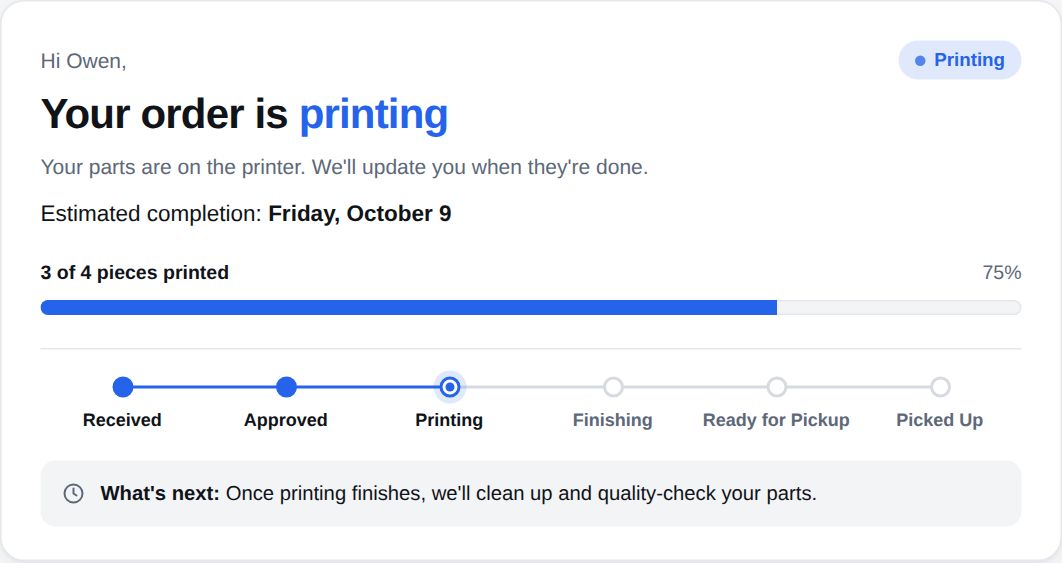
Every order gets its own track page. Your customer opens it from the link in their emails. They do not need an account. To see exactly what they see, press Track page at the top of the order.
The steps
Across the top they see where the job is: Received, Approved, Printing, Finishing, Ready, Shipped. For a pickup order the last two read Ready for Pickup and Picked Up. Under that, a line tells them what happens next.
What they can do
- Say yes to a quote. They see the total, a View estimate link, Approve quote and Decline. If you set up ways to pay, approving asks how they will pay first.
- Change their order. While it is still in review, or on hold, they can press Edit order and send you changes with Submit changes for review.
- Answer you while on hold. The page says why it is paused. If you sent a change to confirm, they get Approve change or Keep it as-is. If you are waiting on payment, they get a Pay button.
- Follow the parcel. Once shipped, the tracking number shows under Shipping with a Track package button.
- Tell you how it went. Once a pickup is marked Picked Up, or a parcel arrives, they are asked how it went: All Good! or I Have an Issue.
For a pickup, they are only asked how it went after you mark it picked up. Not when it is just ready at the counter.
Still stuck? Inside Layers3D, open Help and choose Message us. A person answers.