Help › Shop floor
Why isn't it printing?
Each accepted order that isn't printing says what's in the way, with the button that fixes it. Older orders go on the queue with Queue them.
Pictures taken from Layers3D 2026.16.04 on Oct 19, 2026
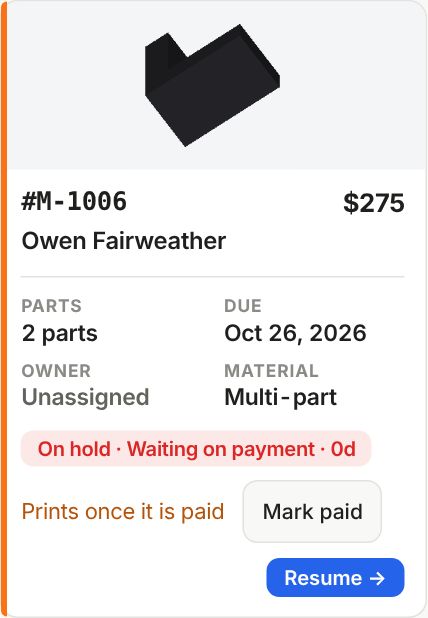
An accepted order that isn't printing now says why, in one line, with the one button that clears it.
Where you see it
On cards on the Make board, on each part of an order, and on plates waiting in Production › Print queue.
What it can say
- Sliced. Waiting for you to approve the slice. Click Look and approve.
- The slice failed. Click Slice again.
- Prints once it is paid. Click Mark paid when the money is in.
- No printer is taking queue jobs. Click Turn on Take queue jobs.
- Ready for H2S-001. Press Send to start it. That printer has Send live off. Click Send to H2S-001.
- Made before auto-queue was on, so it never took it. Click Queue it.
Some things only hands can fix, like loading a filament or switching a printer on. Those lines have no button.
Queue older orders
Turned on Print automatically after you had accepted orders? It never took those. Go to Production › Print queue. Under To slice, a line counts them. Click Queue them and they all go through auto-queue. Just one? Click Queue it on its row.
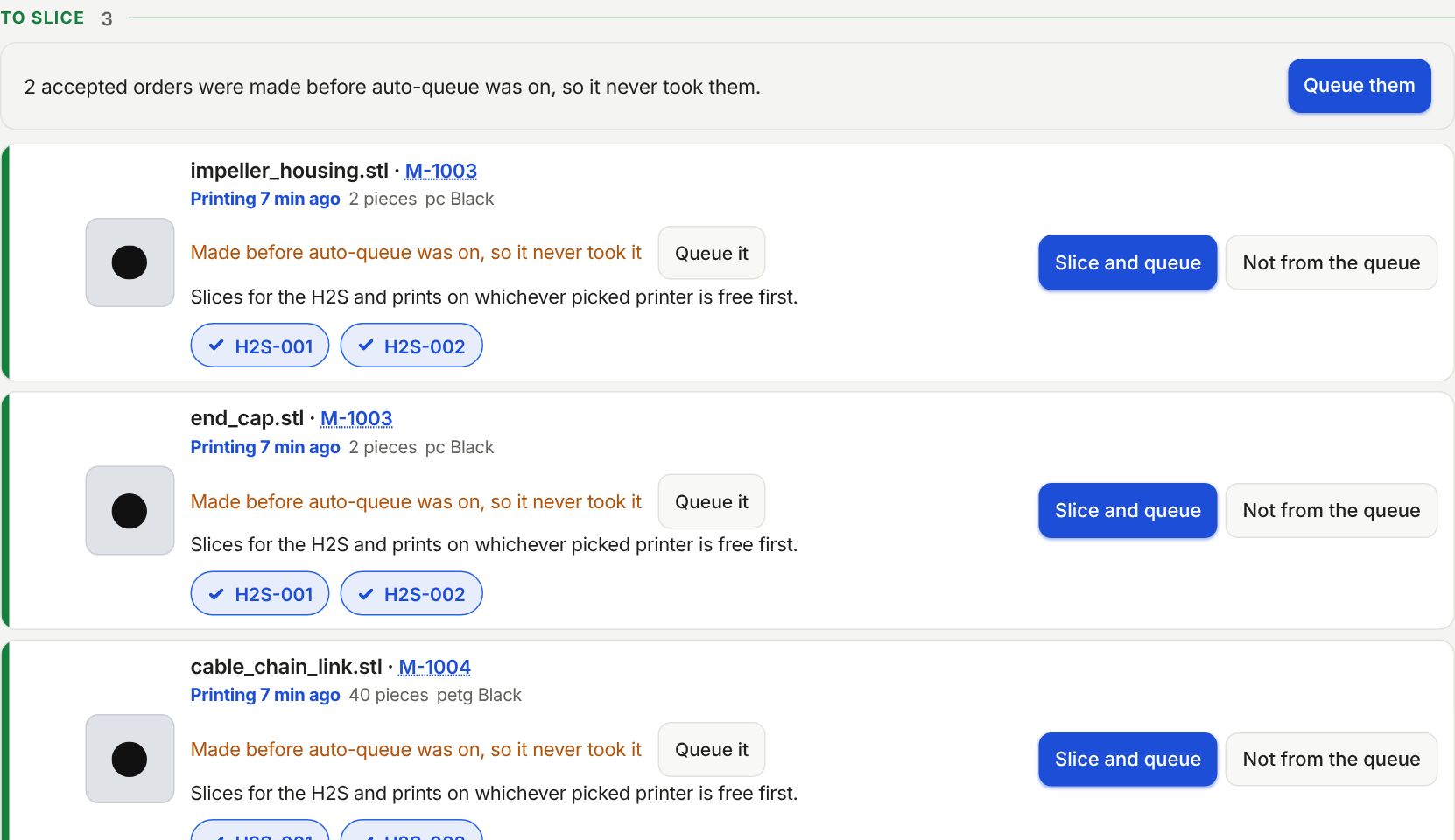
A message says how many parts are on the way. Orders waiting on payment stay put until they're paid.
Still stuck? Inside Layers3D, open Help and choose Message us. A person answers.