Help › Getting paid
Get paid before you print
Send the invoice when the customer accepts, and the order waits for the money before any plate starts.
Pictures taken from Layers3D 2026.16.09 on Oct 20, 2026
Go to Settings › Getting paid › When they pay. Under Send the invoice, pick When they accept. It saves as you click.
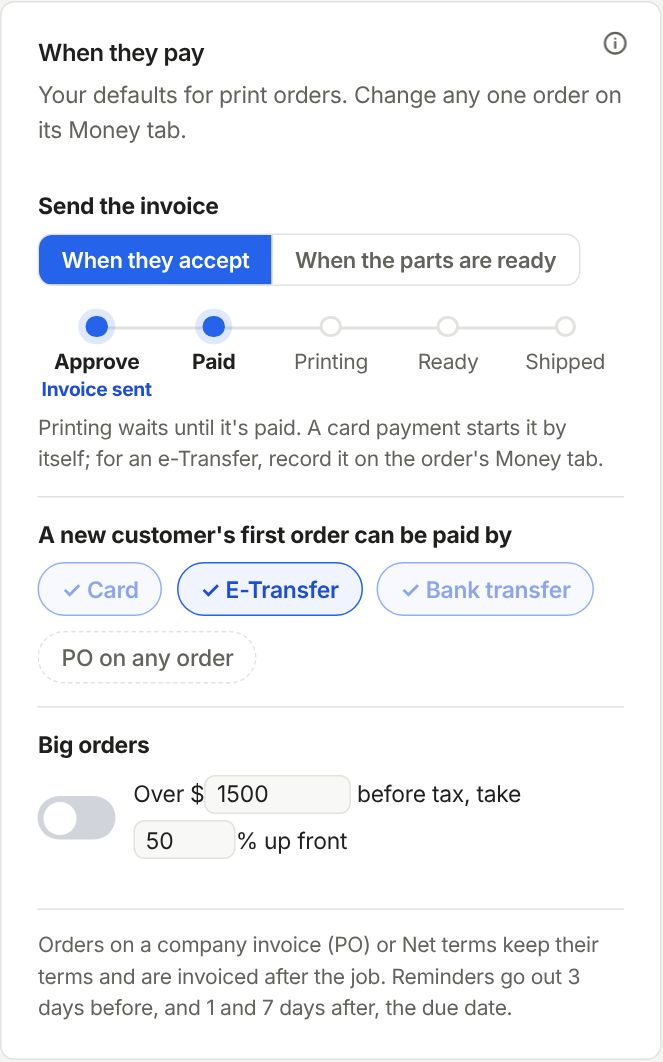
What happens when they accept
- The invoice goes out with their approval email, and the page they approved on shows how to pay.
- The order goes On hold with Waiting on (name) to pay $(amount).
- Its plates stay off your printers, even ones already in the print queue.
- A card payment through the link takes the hold off by itself. The order is ready to print.
They paid another way
Open the order and press They paid. Pick how (e-Transfer, Card, Bank transfer, Cash, Cheque or Other), check the amount and the day, and press Mark paid. The hold comes off, its plates can print, and the customer gets a receipt.
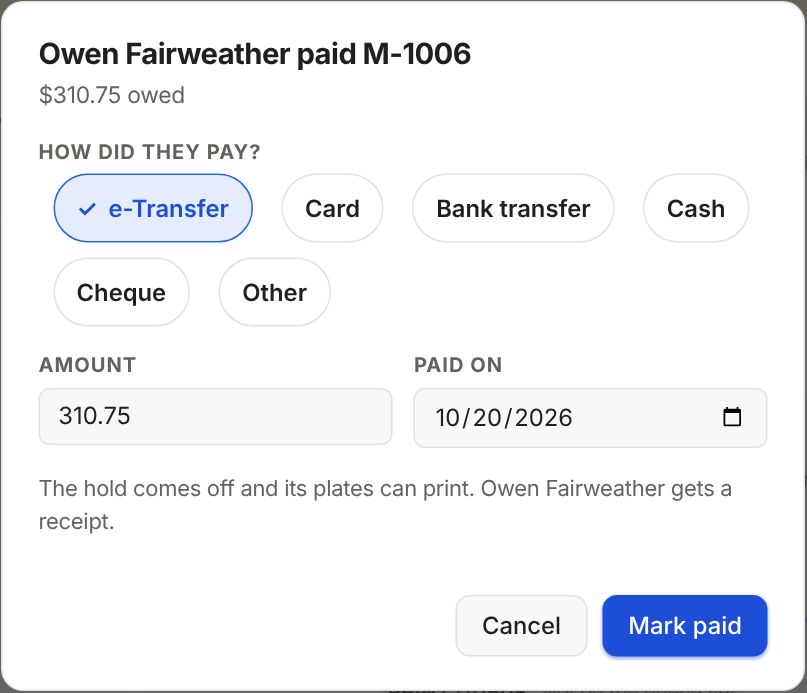
Only part of it, like a deposit? Type what they paid. The hold comes off once what is due now is in.
With the print queue
In Shop setup › Machines › Print defaults, Auto-queue orders › When set to After payment slices and queues an order only once it is paid. Right away slices it as soon as they accept, and the plates wait in the queue until it is paid.
Orders on a company invoice (PO) or Net terms keep their terms. They are invoiced after the job and print right away.
Still stuck? Inside Layers3D, open Help and choose Message us. A person answers.