Help › Shop floor
The print queue
Accepted orders get sliced and lined up, and each printer takes the next plate when it is free.
Pictures taken from Layers3D 2026.16.09 on Oct 20, 2026
Open Production › Print queue. The top shows what is printing, what is waiting, the time left and anything that needs you.

Turn it on
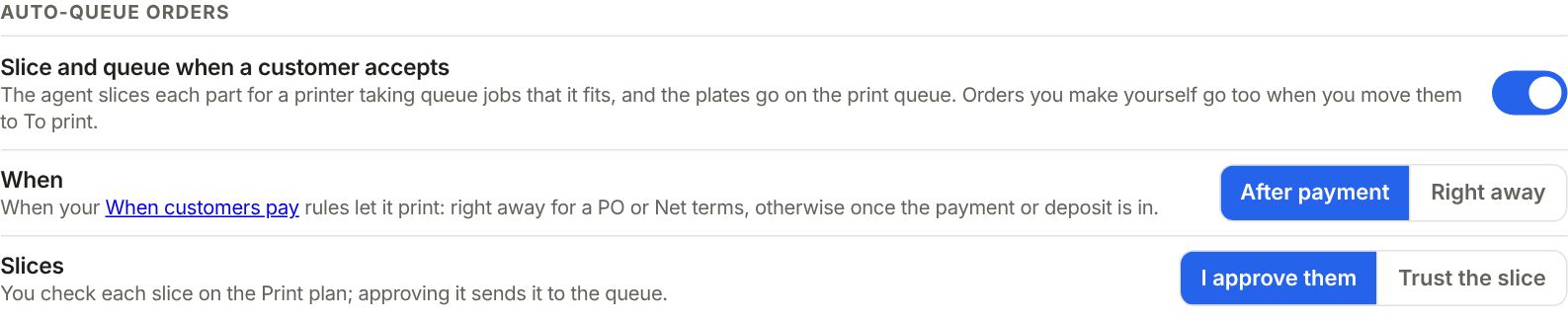
- Go to Shop setup › Machines › Print defaults. Under Auto-queue orders, switch on Slice and queue when a customer accepts.
- When: After payment waits for the money (see Get paid before you print). Right away starts as soon as they accept.
- Slices: I approve them means you check each slice on the Print plan first. Trust the slice sends each one to the queue as soon as it is done.
- In Production › Fleet, switch on Take queue jobs for each printer that should print from the queue. Then Send live lets the queue start plates on it by itself.
Without Send live, nothing starts by itself. The queue shows which printer would take each plate, and you press Send. Turn it on for one printer when you are there to watch its first print.
Which printer takes what
Each part is sliced for every printer model it fits on that takes queue jobs. If it fits an H2S and an H2D, whichever one frees up first takes it.
A plate starts when its printer takes queue jobs, has Send live on, its plate is cleared, its queue is not paused and the right colour is loaded. See Colour swaps in the print queue for close-enough colours.
Rush plates go first. After that it is the queue order: drag a plate by its handle to move it up or down.
Add a file yourself
Already sliced it? Press Add sliced file at the top of the queue. For a part on an order, open the order, go to Production, press ⋯ on the part and pick Add to print queue. Pick the file, how many pieces are on one plate, how many plates to print, and Rush, Normal or Low.
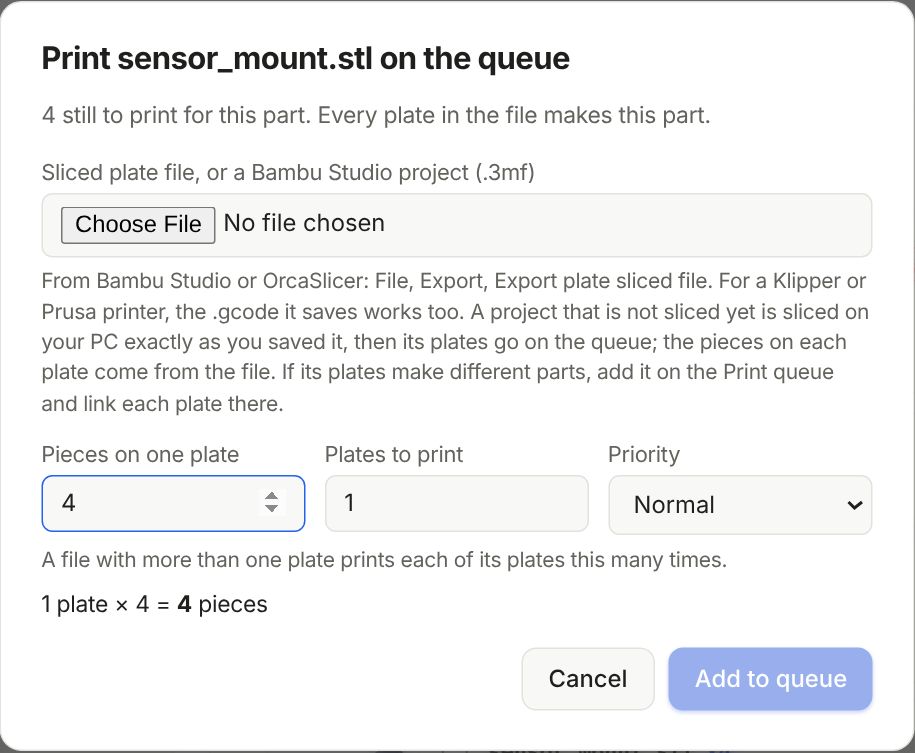
A Bambu Studio project that is not sliced yet works too. Your shop PC slices it exactly as you saved it, then it joins the queue.
Keep an eye on it
- Filament running low lists a spool that runs out partway through what is queued for its printer, and any filament the queue needs more of than you have loaded and on the shelf.
- Load next says what to load on each printer for its next plates. Print the sheet gives you a copy for the wall.
- The Printer report tab shows each printer's good prints, failures and hours. A printer that fails more than the rest is on top in red, with See failed prints.
Still stuck? Inside Layers3D, open Help and choose Message us. A person answers.