Help › Shop floor
Watch your printers on camera
See every printer at once, open one for live video, and use the light, fans, temperatures and moves from the same window.
Pictures taken from Layers3D 2026.16.74 on Nov 1, 2026
Your printers' cameras show in Layers3D through the shop agent. You can check a print from your phone without walking over to it.
Every camera at once
Go to Production › Fleet and press Cameras at the top. Each printer shows its camera with a new picture every few seconds, plus what it is printing and the time left.
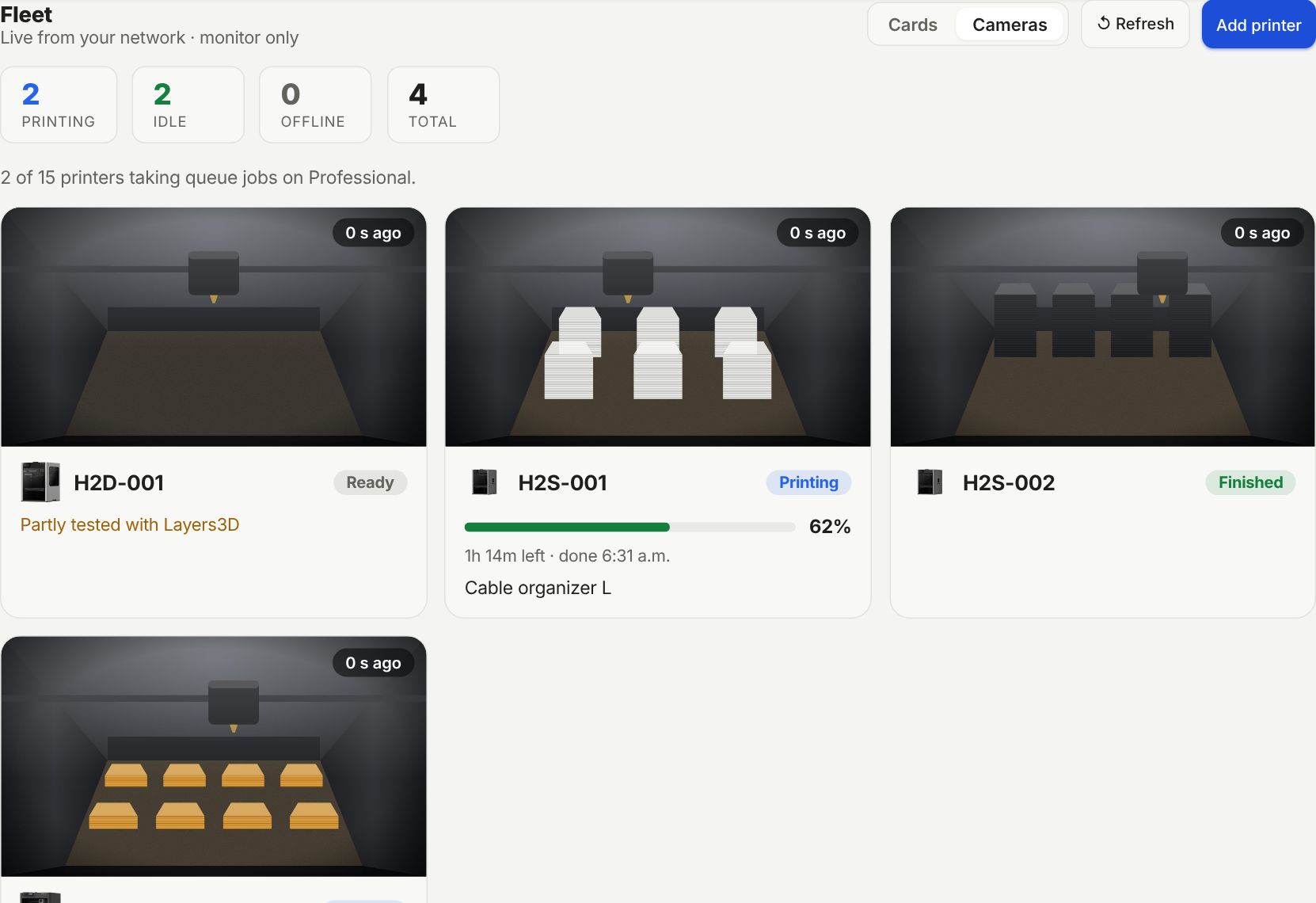
Press Cards to go back to the printer cards. Fleet always opens on Cards, so the camera wall only runs while you look at it.
One camera, live
Click a camera picture, or the camera button on a printer card. The window plays live video, with the light, fans, temperatures and the print beside it, and Move and AMS under the picture.
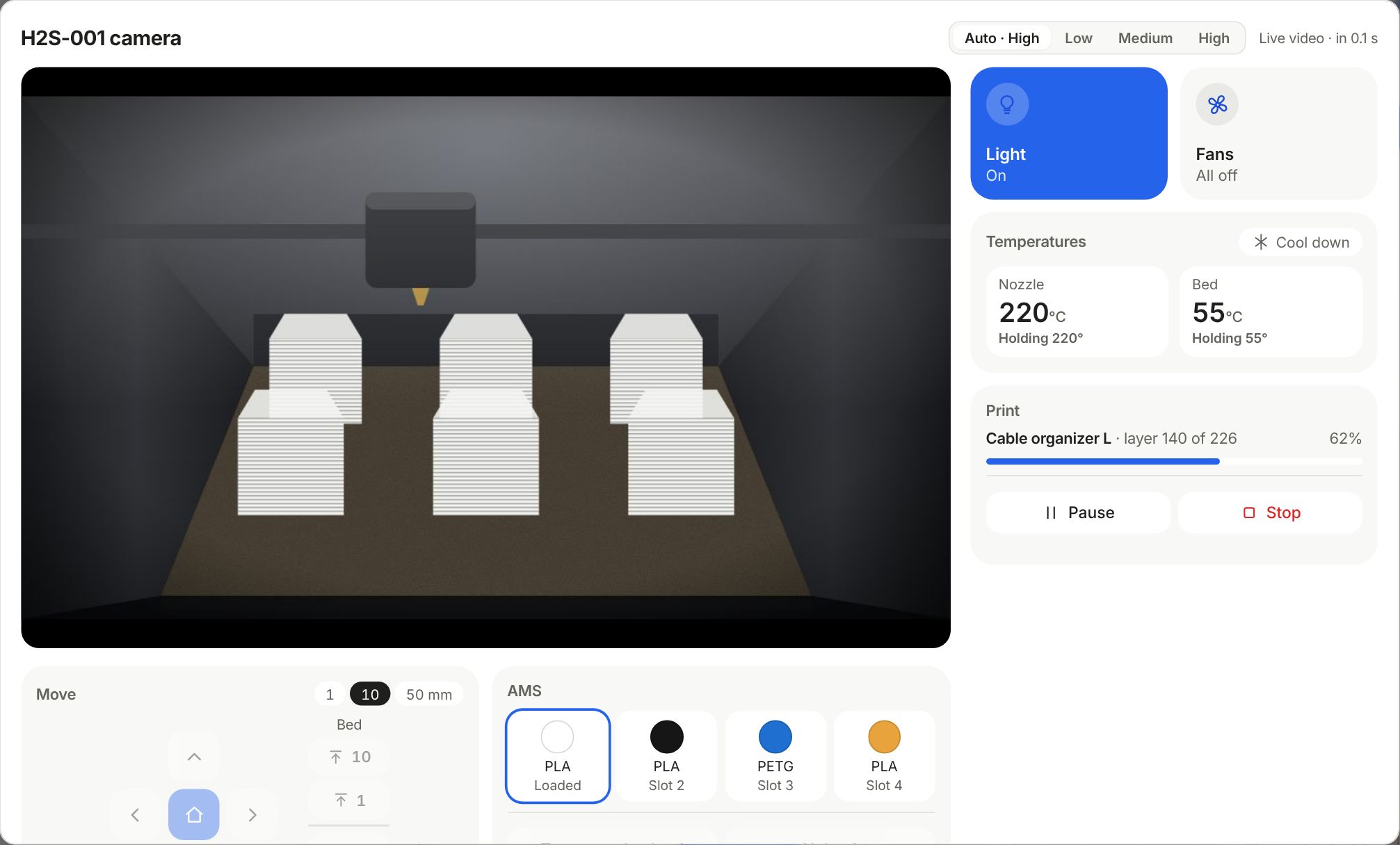
- Auto, Low, Medium, High set the picture. Auto picks the best your shop's internet keeps up with. Bambu H2, X1, X2 and P2S cameras only.
- Light turns the chamber light on or off.
- Fans and Temperatures set them by hand. Cool down turns the heaters off.
- Pause and Stop act on the print. Stop asks first, since a stopped print can't be resumed.
- Move and AMS load, unload and move the head only while the printer is idle. The first move homes it, so clear the plate first.
Black picture or no camera
- On the printer: Settings › LAN Only. Make sure LAN Only Liveview is on.
- Still black? Turn LAN Only Liveview off and on again. If it stays black, restart the printer.
- Says it is waiting for the shop agent? The computer it runs on may be off or asleep. See When a printer says Offline.
When the window names LAN Only Liveview, its Show me how link shows where the switch is on the printer's screen.
Still stuck? Inside Layers3D, open Help and choose Message us. A person answers.